 |
This article is a stub. You can help Dead Cells Wiki by expanding it. |
Assist Mode is a new mode to customize the games difficulty added in Version 2.9. It was added alongside new accessibility options. Enabling this mode does not disable Achievements, the acquiring of Boss Stem Cells or perfect kill rewards. It does, however, hide your score from being on the Daily Challenge leaderboard.
Assist mode lets you customize certain game settings to make it more accessible. Dead Cells is a difficult and demanding but easy to play game. We therefore recommend using these options to fit the difficulty to your needs while keeping the game challenging for you.
However, our goal with this mode is to make the game accessible to the broadest audience possible without forcing you to play with arbitrary difficulty settings. Feel free to use whatever option you want! What really matters is that you have fun playing Dead Cells!
Assist Mode
Continue Mode
Each time you die, you can choose to resurrect from your last save instead of restarting a run.
Saves happen when going trough doors like Biomes entrances and exits or boss cells doors, lore rooms and sub-biomes. Players can choose limited or infinite continues. For limited the choices are 0, 1, 3 or 7.
Auto-Hit Mode
You automatically attack nearby enemies with your primary melee weapon.
Destroy doors in Auto-Hit Mode
Autimatically attack doors in Auto-Hit Mode.
Easier Parry
You have more time to trigger a parry.
Slower traps
Mobile traps are slower.
Reveal the map
Completely reveal the map of the current level.
Trap damage
Option to limit damage done by traps in increments of 20% to a minimum of 20%.
Enemies Health
Option to lower health of enemies in increments of 2.5% to a minimum of 20%.
Enemies damage
Option to lower the damage done by enemies in increments of 2.5% to a minimum of 20%.
Accessibility Settings
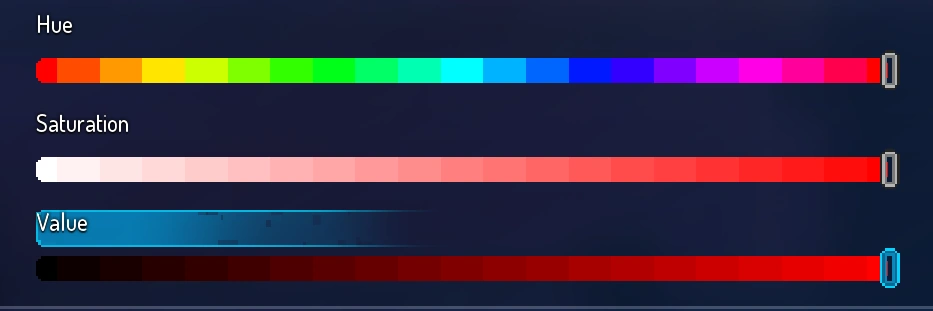
These settings add a number of options to customize the look of the game to a players specific need. Various options allow the addition of basic colors to certain elements of which the Hue, Saturation and Value can be adjusted freely.
-
 Color sliders used to adjust various options.
Enable bright flashes
Turns off bright flashes that affect the game sreen (explosions, wounds, etc.). Use this option if these flashes bother you or pose a health risk.
Activate screen shake
Deactivate any screen shakes that may pose a risk (explosions, cutscenes, etc...)
Particle limit
Limits the amount of particles on screen. Can be adjusted in increments of 10% to a minimum of 10%
No Blood mode
Remove all blood splashes and bloodied assets.
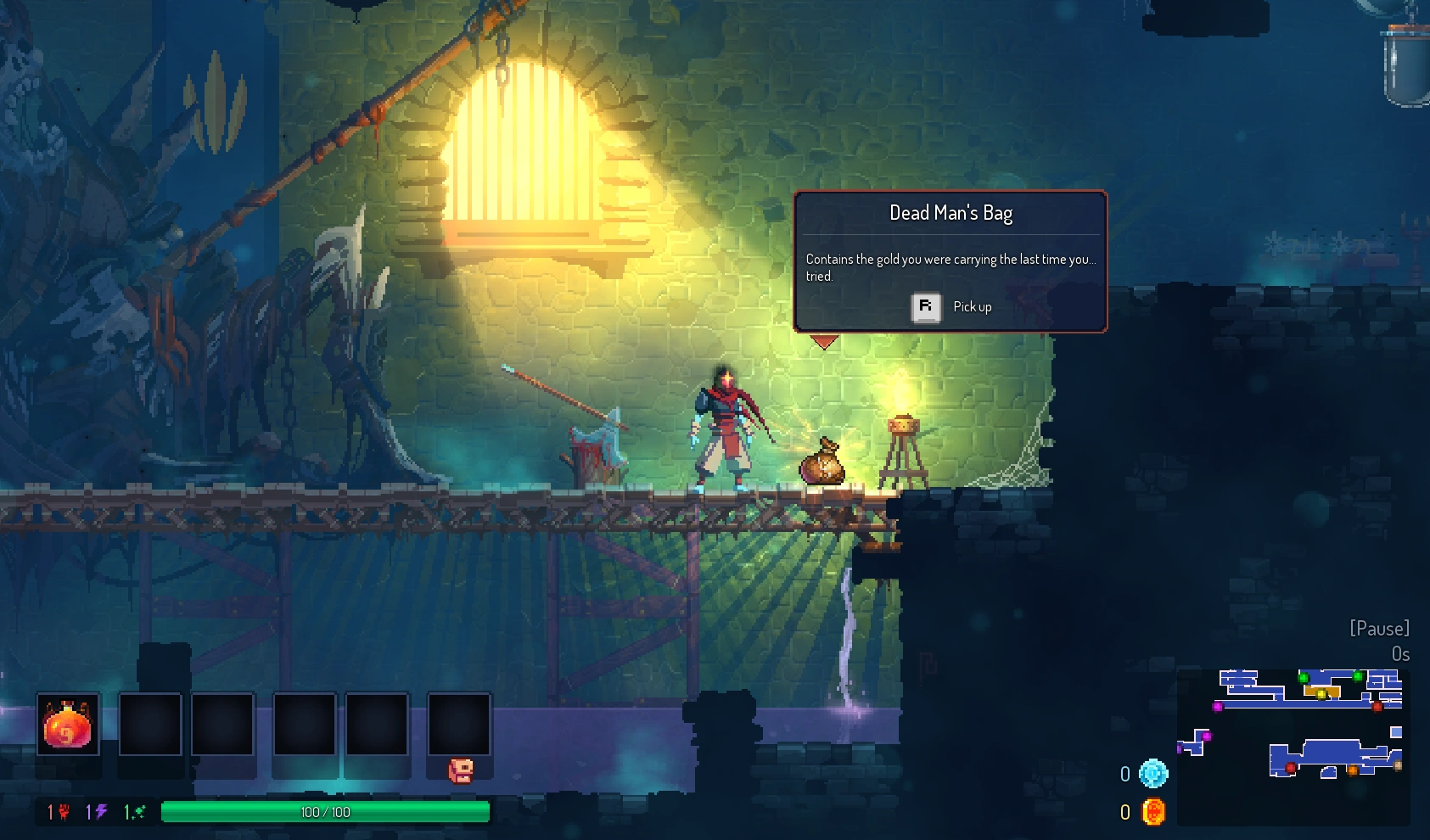
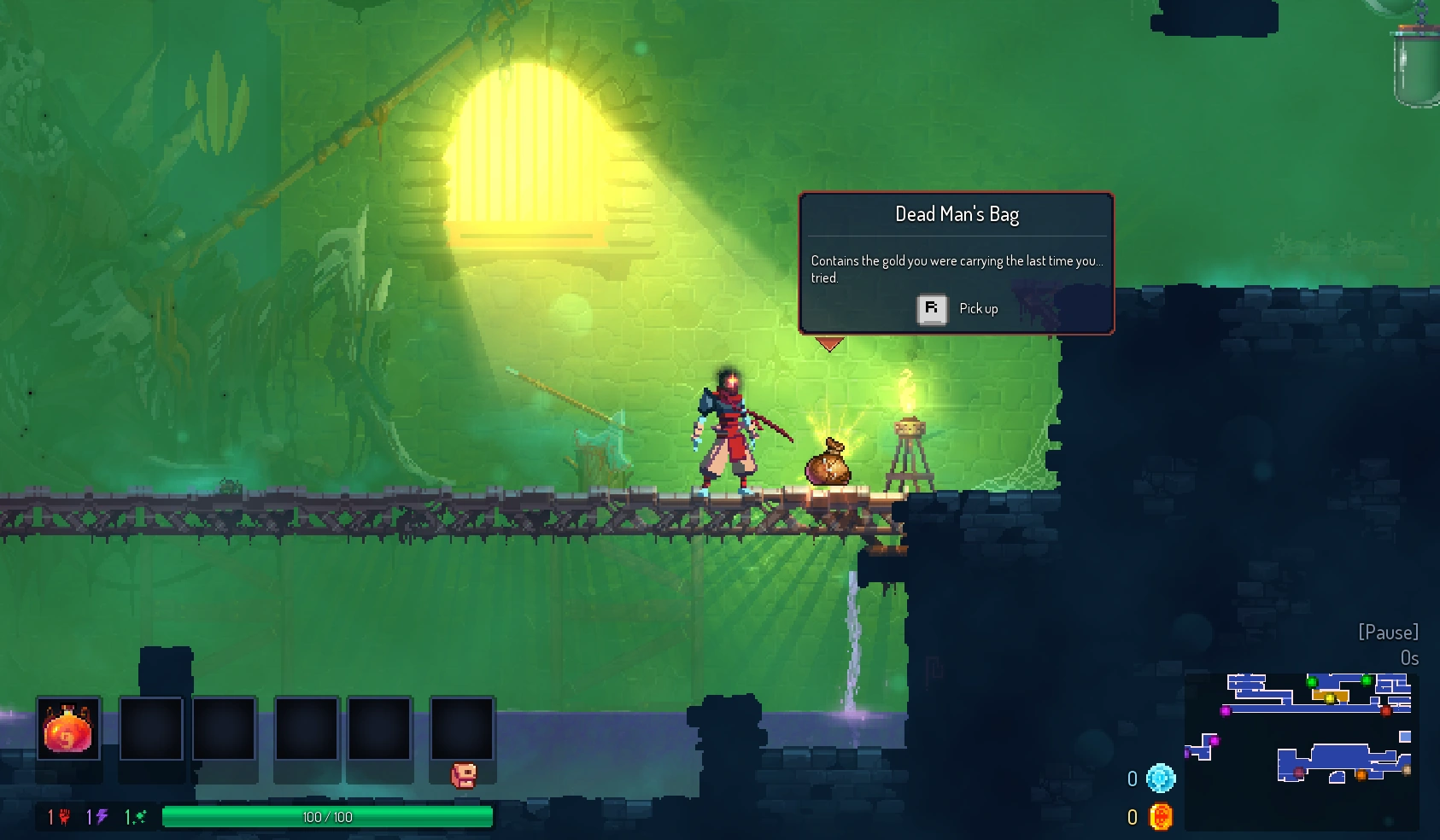
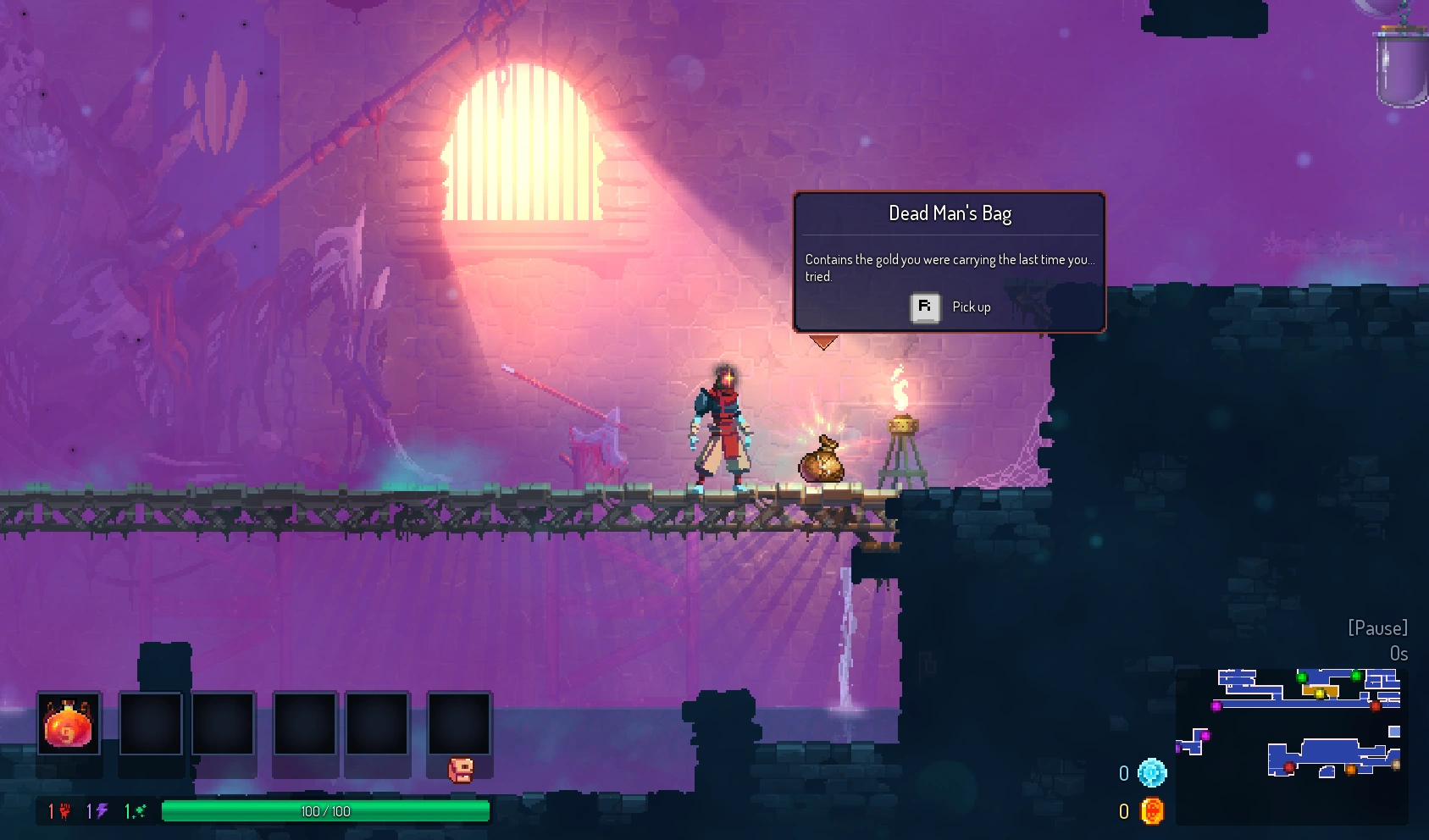
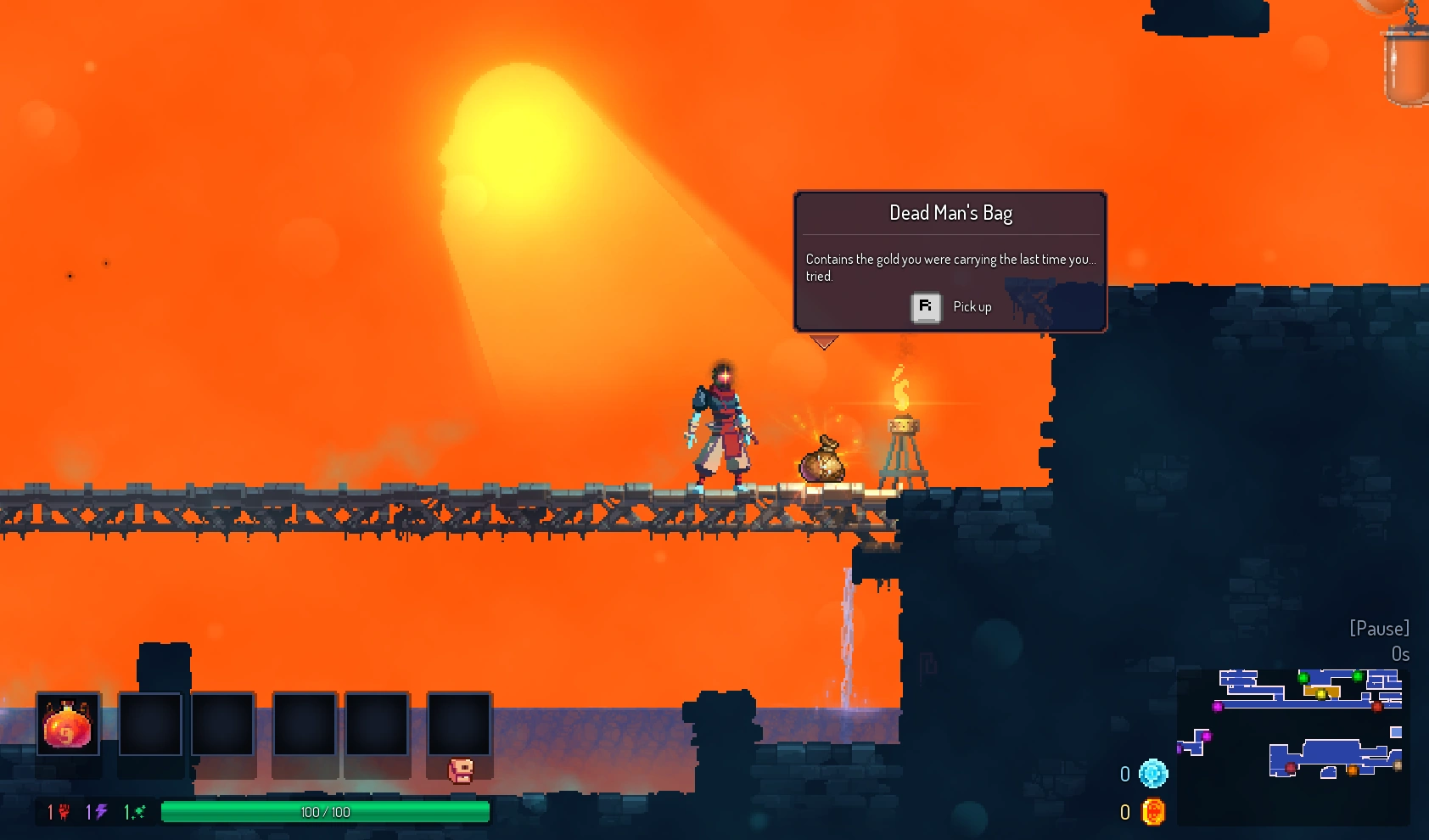
Background filter
Add a coloured filter to the background so that foreground and interactable objects are clearer. The filter can be adjusted in visibility as well.
-
 No background filter applied.
 -
 Green background filter applied at 50%.
 -
 Pink background filter applied at 50%.
 -
 Orange background filter applied at 100%
Outline options
Add colored outlines to various elements in the game.
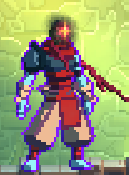
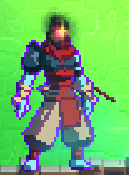
Hero Outline
Add an outline to the hero
-
 Purple outline around the beheaded.
 -
 Outline on beheaded with a filtered background.
Enemies outline
Add an outline to the enemies
NPCs outline
Add an outline to the NPCs
Active skill outline
Add an outline to the player's active skils (Pets and deployables)
Projectiles outline
Add an outline to projectiles
Secrets outline
Add an outline to secrets
Stats display settings
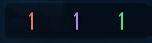
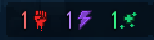
Display stats icons in addition to their color
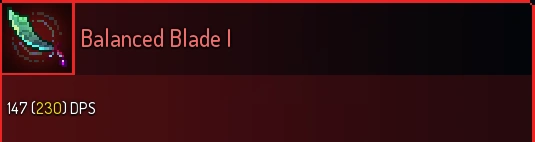
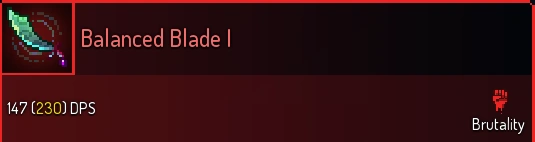
Add icons to each stat in the HUD and items. There is no option to adjust the size of icons seperately but the icon size can be adjusted by using the ""HUD size"" setting in the ""HUD layout settings"" part of the video settings.
-
 Stats
Stats -
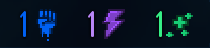
 Stats with their Icons
 -

-
 Stat Icon on an item
Customize Brutality color
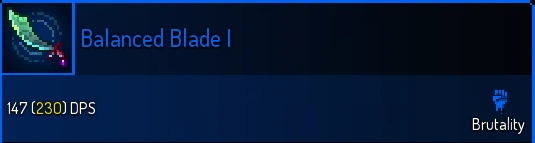
Change the color of the Brutality stat.
Customize Tactic color
Change the color of the Tactic stat.
Customize Survival color
Change the color of the Survival stat.
-
Item with standard brutality color
-
 Item with brutality color customized to blue.
 -
 Stats with brutality color customized to blue.
Text settings
Various text sizes can be changed.
Object names size
Can be changed up to 150%
Object description size
Can be changed up to 200%
Dialog size
Can be changed up to 200%